eXtensions - Monday 29 December 2025
By Graham K. Rogers
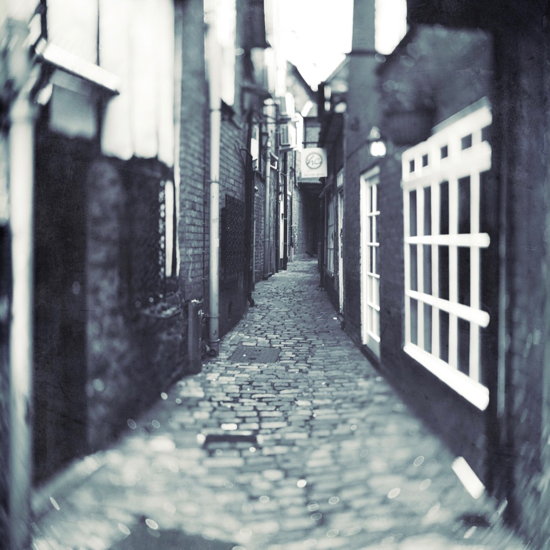
With some spare time at Christmas, I read some online information about camera settings and made some experimental changes to my DSLR. I am not alone when criticising some of the arbitrary changes Apple makes to its interfaces, apps and hardware. A recent change is the odd repositioning of straighten, perspective and keystone icons on the iPad Pro. Like other changes, I questions the need and the execution.
I had expected that the Comment on 26 December would be the last item for 2025 but a couple of ideas came my way which (I think) are worth putting online. I wish you all a happy new year and all the best for the future.
I was a bit peeved when, in the iOS 26 update, Apple removed the filters option for when taking RAW photographs. This is still available if a user takes photographs using HEIC. I don't. I always work in raw when possible on my iPhone and Nikon D850, although negatives from my film cameras are scanned in TIFF. Even if I intend to use the image in color, I prefer to look at the scene in monochrome so that I can gauge shadows and light better. You have to remember that, brought up in days long before digital existed, only black-and-white film was available when I first used a camera as a child. I guess that has stuck.
To be clear I can still use the iPhone screen to take photographs of course. That is not a problem. Also, when using cameras like my Hasselblad 500 CM or the TSL Rolleiflex, the image I see in the viewfinder is color. The iPhone also has a neat little trick. I can view a scene using either the square 1:1 ratio or 16:9 but in editing, the content still includes a far wider area. If needs be, I can bring that area back into the image when using crop tools (see comments below). In editing, I will crop and change the image, perhaps to black-and-white, and clean up any other problems.
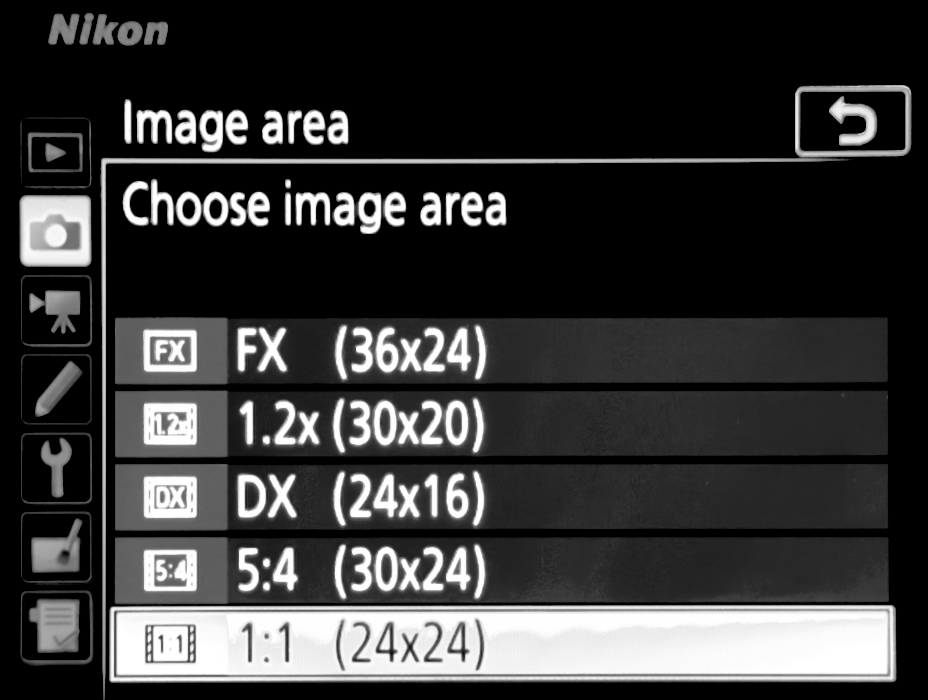
I saw an article by Zen Siang Yang (FStoppers) that made reference to using less of the camera sensor when taking photographs, with an option being the 1:1 crop. This was another feature that goes in the "I did not know I could do that" class. I had a look at the Nikon Support pages. Following the instructions and images of the camera menu on the page I was quickly able to open the relevant Image area settings screen and change to a square sensor.
|

|
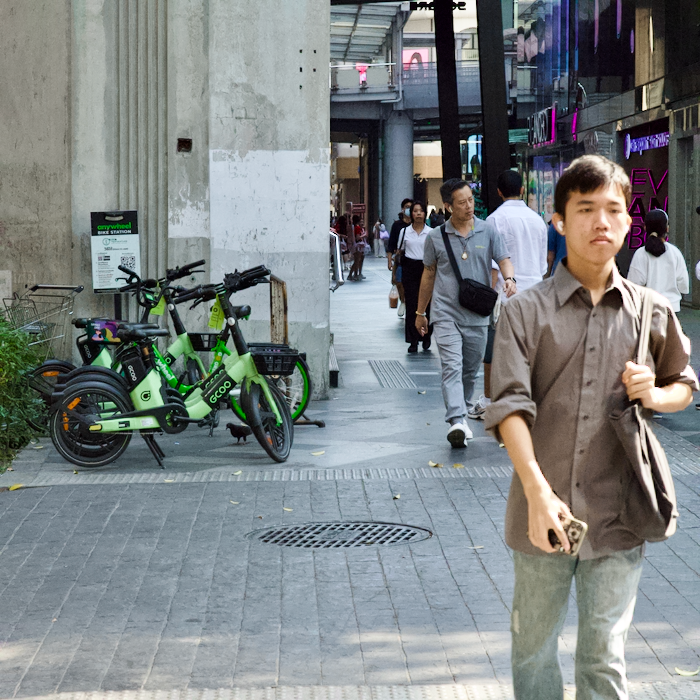
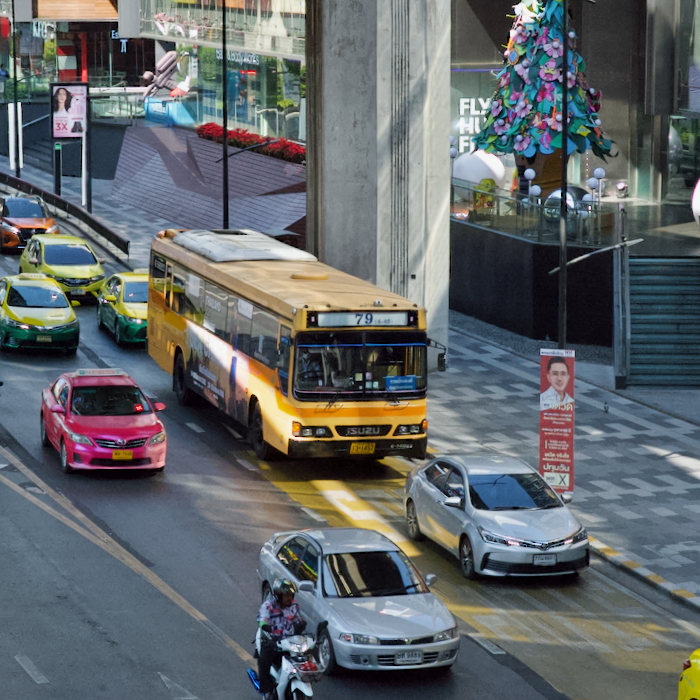
The images were still respectable at 45.5 MB as opposed to 72 MB for full sensor images. During the day I took some 29 photographs, all with the same one to one ratio and was fairly pleased with the results. One or two, such as the flower, needed some cropping but this was still a respectable 4048 x 3106 image after editing. I would not want to use this permanently, so will consider adding the access to a Function key. Unlike the iPhone, the full sensor area is not included in the saved file.
|
|
I decided to take this a little further as I wondered if it were possible to view the scene through the D850 viewfinder in black & white. In short, No. Some more recent, mirrorless cameras do have this, but the technology is different. The viewfinder on the DSLR is prismatic: I view a scene through the lens, which is a little below the eyepiece. The light is bent through prisms then redirected into my eye. Pure physics. The lens construction works in a different way in a mirrorless camera. Some do not have a viewfinder and the user will rely on the rear screen. Many, however, do have an electronic viewfinder (EVF) and the output can be changed.
However, for the older DSLR technology on the D850 there is a sort of workaround using the Live View feature on the display screen. I use this mainly for navigating through the complex menu system on the Nikon (and other cameras), but I am able to see an image if I so choose. I also use this screen for examining some of the photographs I have taken.
Normally a user has to move the screen away from the face a little, although some take up an arms-length stance. The viewfinder makes the camera more stable, although mistakes can still be made. With the D850 I can pull the screen out and turn it to face upwards. I can then look down at the scene as if I were using the waist-level viewfinder of my Hasselblad. I find that this is a little less stable, although my test shots were all in good focus.
When imported to the Mac or iPad Pro, the RAW images are displayed in color. In editing it is easy to apply a black and white filter (or edit in other ways). Remember also that it is possible to edit the saturation of colors in some applications in a black and white image that was originally RAW, so that grass or the sky (as examples) can be made darker or lighter depending on the editor.
Reading between the lines of Howard Oakley's article - who must have reported many problems through his developer account while running beta versions of the 26 updates - the answer appears to be, probably not. For sure, Apple has its own way of doing things, but my understanding is that sometimes the Corporation listens and changes are made. Of late, this has not been happening. I am still waiting for replacements for the Airport WiFi router and Aperture: both losses left users in the lurch. Oakley must have the last word here (and I concur), "Not that I want to turn the clock back, but it would be really helpful if I could read clearly what's on my display once again."
 This is smaller than the screen of an iPhone, so the image displayed is less clear although the display includes useful metadata. There is a good description of this on the Photography Toolkit site. The writer mentions the use of Picture Control. This is in the same Photo Shooting Menu as the Image area settings,

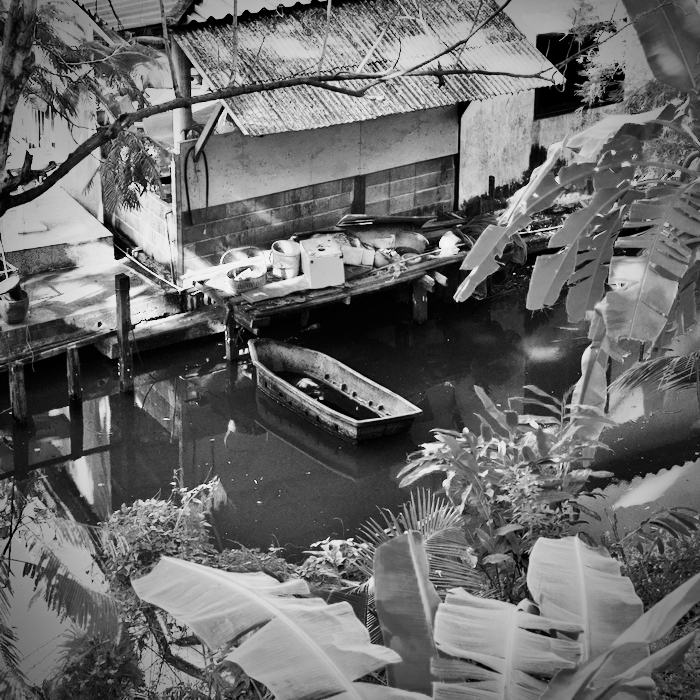
Same scene, consecutive images, different editing
More on that idea of Apple taking away in the context of changes to the whole interface that were part and parcel of macOS26 (and other 26 OS releases). Howard Oakley has a scathing comment on what all users were forced to stomach when Liquid Glass was foisted upon us. He has some excellent explanations of the Mac's underpinnings, although I sometimes find some of the more technical articles difficult to absorb. It is clear, however, that his heart (and his Art) is in the right place. Here he is spot on. Some changes to apps and the interface (of all Apple devices and OS) over the last few years have often baffled and/or annoyed me. I am often left asking the question, Does anyone actually use the device(s) before foisting this change on users; or Did anyone actually ask for this?
As a brief note in addition to my comments on using Photos, while I was editing images for the camera changes section above, I noticed that the Straighten, Perspective and Keystone icons have been changed on the iPad Pro. When an image is cropped, only Straighten was visible. I could see only half of the Perspective icon. I found that to make these available, they need to be dragged left onto the screen. Photos on the iPhone remains unchanged and, despite the smaller screen, all three icons are visible: another forehead-slapping interface change that makes things just a little bit harder to work with. I submitted feedback to Apple.
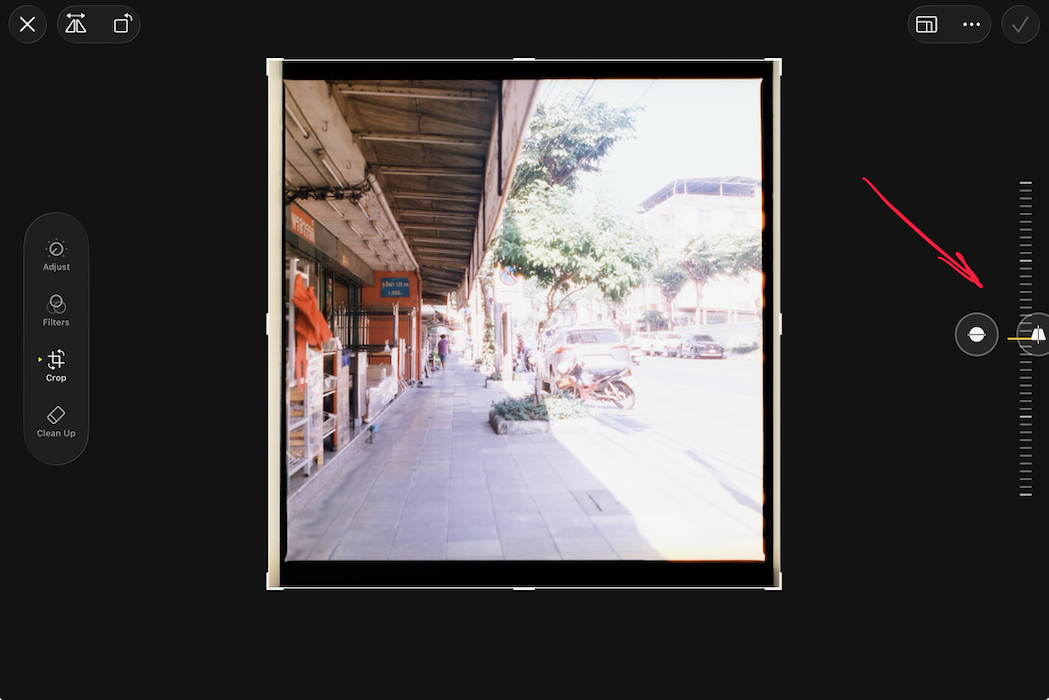

Placement of Straighten, Perspective and Keystone icons in Photos on iPad Pro
Graham K. Rogers teaches at the Faculty of Engineering, Mahidol University in Thailand. He wrote in the Bangkok Post, Database supplement on IT subjects. For the last seven years of Database he wrote a column on Apple and Macs. After 3 years writing a column in the Life supplement, he is now no longer associated with the Bangkok Post. He can be followed on X (@extensions_th). The RSS feed for the articles is http://www.extensions.in.th/ext_link.xml - copy and paste into your feed reader. No AI was used in writing this item.

For further information, e-mail to
Back to
eXtensions
Back to
Home Page